
It’s Cyber Safety Week and at Exess HQ we’re focusing on how to keep systems safe while doing the important mahi that Exess users need to do.
Cyber safety is the practice of protecting systems, networks, and programs from digital attacks. With that in mind, here are 10 easy security practices you can do today!
- Create passwords like a pro!
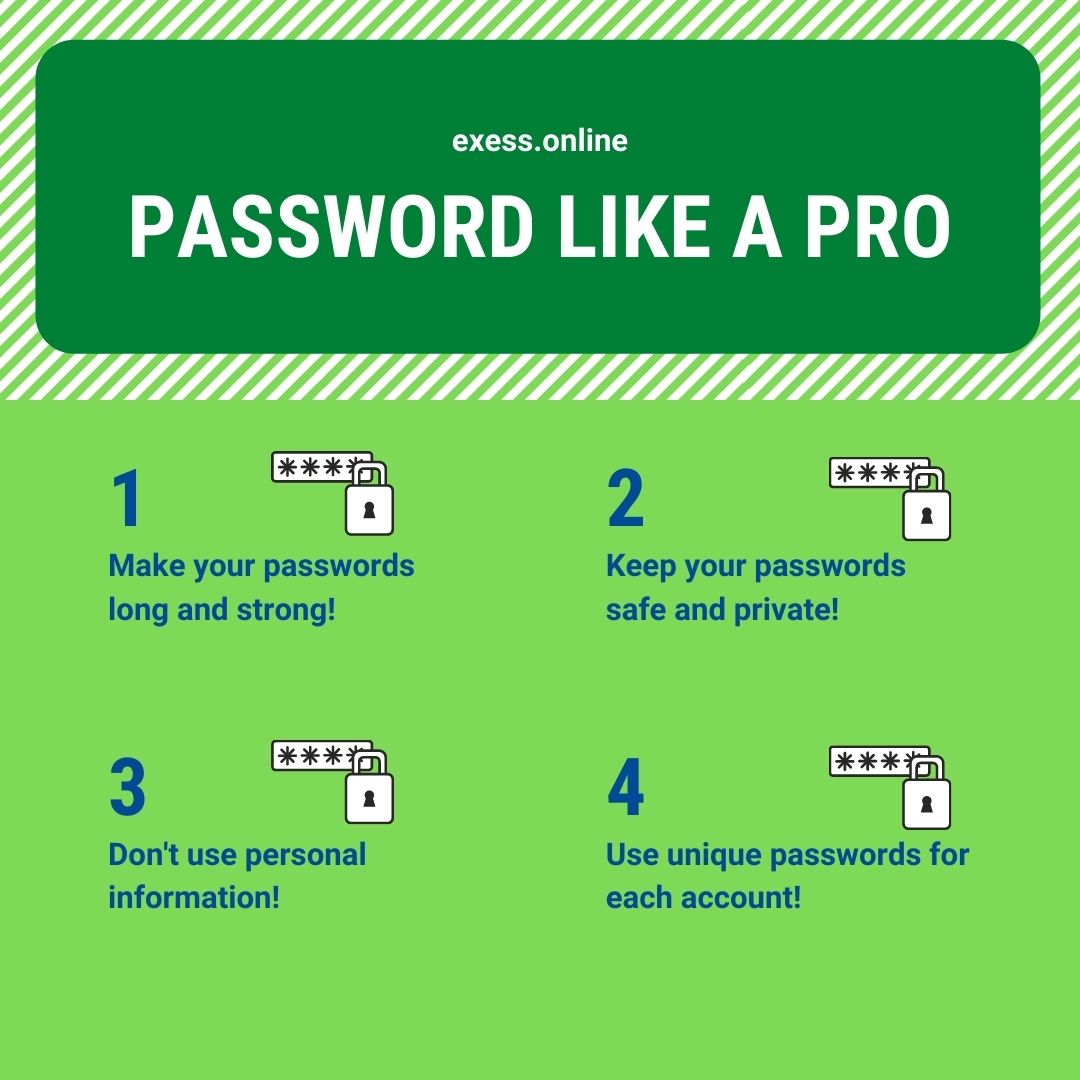
Being password smart is easy. Anyone can do it! We’ve broken down the how in easy-to-manage steps so you can tighten password security today!
Make your passwords long and strong!
Upsizing your passwords by using unique combinations of letters, numbers and symbols is one of the best ways to protect yourself online. There are apps that can help create strong passwords for you. A long string of unrelated words can also make great passwords as they’re easy to remember and difficult to guess.
Keep your passwords safe and private!
You should never share your password with anyone. Reconsider saving passwords into private devices, and definitely NEVER save passwords into work devices or into databases containing private client data. Whenever you are saving a password you need to consider the possibility that the device may be lost or stolen – what information are you potentially giving away by having your passwords stored for easy access?
Don’t use personal information as passwords!
If you use social media, your personal information is probably accessable. Facebook quizzes that ask questions like ‘what was your first pets name’ are known hacker data mines! On social media your DOB, address, mothers maiden name and all other standard password reminder data is likely really easy to find. Avoid using anything like this as your password.
Use unique passwords for each account!
A lot of people stick to just one or two passwords that they re-use for each account. The issue with doing this is that if a hacker gets the password to one account, they have automatic access to all of your accounts. Use unique passwords for each of your accounts to help protect your data!
- Update software
Regularly updating your apps and devices helps to keeps bugs and viruses out. Updates fix security issues so that hackers find it harder to gain access to your information. Set apps to auto update or check for updates regularly!

- Delete Bloatware
Devices come with all kinds of unnecessary bloatware built in. Deleting any unnecessary apps from your office computer or phone will not only increase security, it will also help your devices to run faster.
We also recommend turning off permissions that apps you do keep do not need to have.

- Review Antivirus/Security patches
Keep yourself and your organisation safe by ensuring that all devices have great anti-virus software installed on them!
It is easy to install excellent anti-virus software on all of your devices and keep your anti-virus software live and updated so it can detect potential threats in your systems.
Be sure to run software to check device health regularly to keep your data safe!
- Ensure all screens lock
Any device used for work purposes should have a screen lock with a secure access method installed.
- Review office browsers
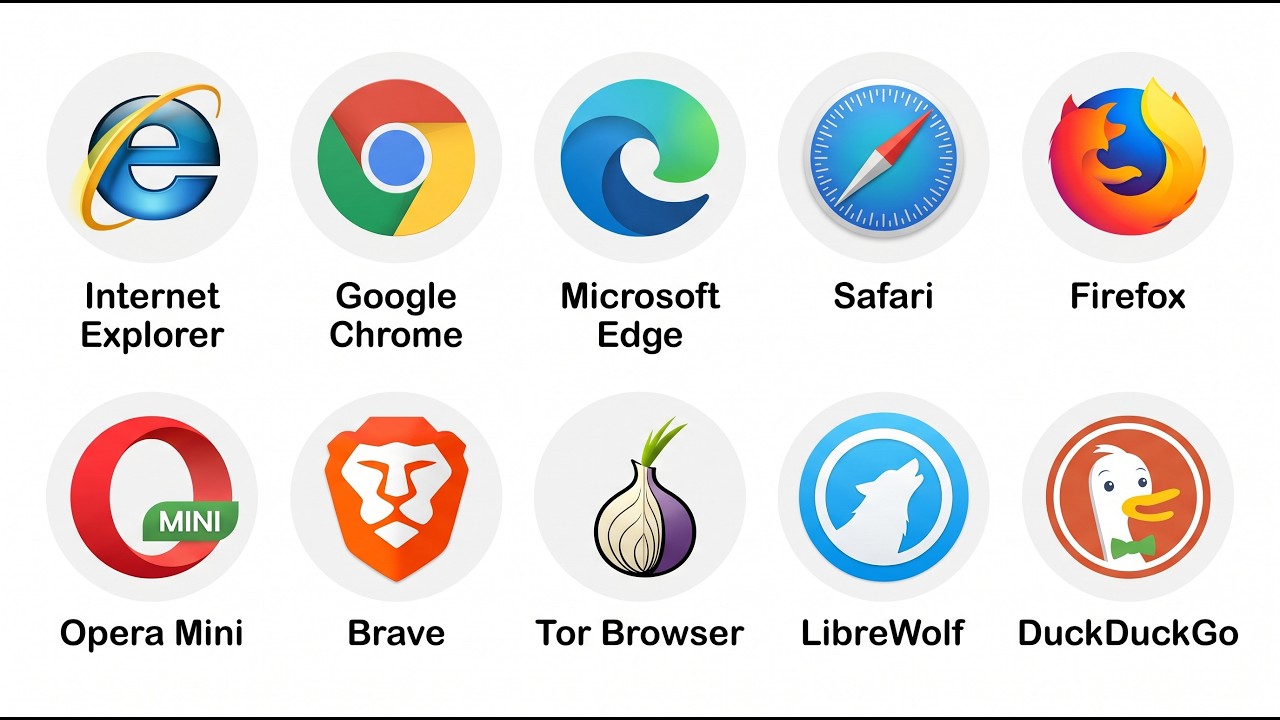
A lot of organisations use Microsoft Edge as it’s the default browser loaded on a computer or laptop but Edge is not necessarily the best browser for the job. Each web browser has different security features and we recommend you research to ensure that you are using the best and most secure browser for the job.
- Restrict USB devices and never click on unknown links
Many users get computer viruses from using corrupted plug in devices or from staff clicking on links online on in their emails.
Never Open Attachments Marked as Spam!
Email accounts often flag bad attachments to the recipient. Pay attention to what your email provider is telling you and never open attachments that have been marked as spam!
Scan email attachments before opening!
You can set your anti-virus software and your web browser to scan links and attachments. This is an easy way to help protect you and your data!
Monitor sender details and attachment titles!
Have you ever received an unexpected email saying that you need to click a link to protect your bank account? Or that if you don’t pay a bill immediately, you’ll be sent to collections? Keep an eye on the email addresses, signatures and language used within emails. Never click links from unknown sources. If you have an email from your bank (for example) and you’re unsure, call them directly and ask them what’s going on!
Protect yourself!
Did you accidentally open an attachment with a dangerous file extension? You need to act immediately! Change your email password right away and if you are at work, let management know what has happened so that they can act quickly.
Run your antivirus software.
If the attachment seems to have came from someone you know, contact them to let them know that they may have been hacked.
- Policy that UNDER NO CIRCUMSTANCES are business details for personal use
Don’t use your work email address to log in to your social media accounts or Netflix. If you do this and your personal accounts get hacked or monitored then there is a direct link back to your workplace.
- Back up critical data
Backing up critical data ensures that important files and information aren’t lost if your device is damaged, hacked, or accidentally deleted.
- Test incident response plans
Testing incident response plans helps ensure everyone knows what to do during a security incident, reducing confusion and limiting potential damage.
- Enable VPN’s
A VPN helps protect your privacy online by encrypting your internet connection and making it harder for others to track what you’re doing.
There are both paid and free VPN options to choose from.
If you, or someone you know, experiences a cyber security incident, report it to your management team, your software providers and to the police!